What This Guide Covers
- Telling a truly frozen update from one that just looks slow.
- Running the built-in Windows Update Troubleshooter to fix common errors.
- Manually clearing the update cache when the troubleshooter fails.
- Identifying the exact moment to stop and call for IT help.
- Setting up your office PCs to prevent future update problems.
- Understanding why these updates are critical for business security.
Why Are Windows Updates Crucial for Your Business Security?
A frozen Windows update isn’t just an annoyance that stops your employee from working. It’s a security risk. Every day your business PCs are connected to the internet, they face threats from viruses, ransomware, and data thieves looking for an easy way in.
Think of Windows updates as the security team for your office’s digital front door. Microsoft finds vulnerabilities—weak spots in the code that attackers can exploit—and releases patches to fix them. When you skip or fail to install an update, you’re essentially leaving a window unlocked for anyone to climb through.
The infamous “WannaCry” ransomware attack in 2017 spread like wildfire through businesses running older, unpatched versions of Windows. The fix for the vulnerability it used had been available for months. The organizations that updated were safe; the ones that didn’t faced encrypted files and demands for payment. Timely updates are one of the most effective and least expensive ways to protect your client lists, financial records, and proprietary information.
Is Your Windows Update Truly Stuck or Just Slow?
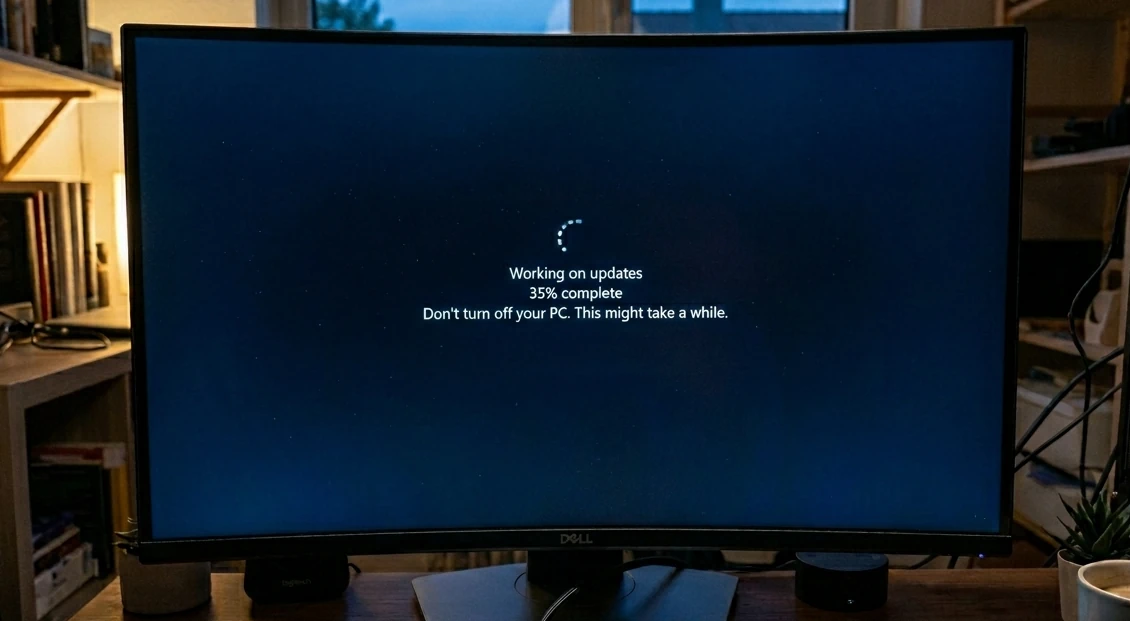
The first question to ask when a screen says “Working on updates” is whether it’s frozen or just taking its time. Large “feature updates,” which Microsoft releases once or twice a year, can take several hours, especially on older computers or with a slow internet connection. A small security patch might take ten minutes.
Before you intervene, look for signs of life. Check the small light on the computer case that indicates hard drive activity. If it’s blinking, even irregularly, the computer is likely still processing files. It’s working, just not showing you visible progress on the screen.
The best analogy I can offer is that a Windows update is like paving a road. Sometimes it looks like the crew is just standing around, but they’re actually waiting for a new truckload of asphalt to arrive or for a section to cure. The work is still happening, just not the part you can see. A truly stuck update is when the paving machine has broken down completely—no activity, no progress, nothing is happening.
My rule of thumb is the “one-hour rule.” If the percentage on the screen has not changed at all in 60 minutes, and the hard drive light is either solid or completely off, it’s safe to assume the process is stuck. Common freeze points are 0%, 35%, 88%, and 99%, or on screens that say “Getting Windows ready, Don’t turn off your computer.”
First Steps: Simple Checks Before You Panic
When you’ve determined an update is genuinely stuck, don’t immediately assume the worst. The fix is often surprisingly simple. Work through these steps in order.
1. Be Patient (The One-Hour Rule)
I know I just mentioned this, but it bears repeating. The number one cause of “failed” updates is user impatience. Go get a cup of coffee, handle another task, and come back in an hour. You will be surprised how often the problem resolves itself.
2. Check the Internet Connection
If the update is stuck in the download or “checking for updates” phase, a dropped internet connection could be the culprit. Use your phone – on WiFi not cell data, or another computer to see if you can still access websites. If the internet is down, the update will be stalled until it’s restored. Rebooting your office router is a good first step.
3. Unplug Unnecessary Peripherals
This sounds strange, but it works. A conflict with a connected device—a USB webcam, an external hard drive, a printer, or even a wireless mouse dongle—can sometimes halt the update process. Unplug everything that isn’t essential. Leave only the monitor, keyboard, and mouse plugged in, then see if the update proceeds. If it does, you can plug everything back in after the update is complete and the PC has rebooted to the desktop.
4. Perform a Forced Restart
This is the step that makes most people nervous, but it’s the most common and effective solution. If the screen is frozen, you have no other choice. Press and hold the physical power button on the PC for about 10 seconds, until the machine powers off completely.
Wait about 30 seconds, then press the power button again to turn it back on. Windows is designed to handle this. It will either attempt to resume the update or, more likely, it will say “Attempting to recover the installation” and then “Undoing changes made to your computer.” This is a good sign. It means Windows recognized the update failed and is rolling itself back to the previous state, leaving your files and programs untouched. Once you’re back at the login screen, you can try the update again.
How Do I Run the Windows Update Troubleshooter?
If a forced restart gets you back into Windows but the update fails again on the next attempt, your next step is Microsoft’s own built-in repair tool. The Windows Update Troubleshooter is an automated script that scans for and fixes the most common problems, like corrupted files or services that aren’t running correctly.
Running it is simple and carries no risk. The steps are slightly different depending on your version of Windows.
For Windows 11
- Click the Start button and open Settings (the gear icon).
- In the left-hand menu, click on System.
- Scroll down and click on Troubleshoot.
- Click on Other troubleshooters.
- Find Windows Update in the list and click the Run button next to it.
For Windows 10 (Updates ended October of 2025)
- Click the Start button and open Settings (the gear icon).
- Click on Update & Security.
- In the left-hand menu, click on Troubleshoot.
- Click on Additional troubleshooters.
- Find and click on Windows Update, then click the Run the troubleshooter button.
The tool will scan for a few minutes and report what it found. It might say it fixed some issues, or it might say it couldn’t identify the problem. Regardless of the outcome, restart your computer once it’s finished. Then, go back to Settings and manually check for updates again.
What If the Troubleshooter Fails? Essential Next Steps
Sometimes the automated tool isn’t enough. If the update still fails, there are two slightly more advanced, but highly effective, steps you can take. These involve using the Command Prompt, a text-based interface for Windows. Don’t be intimidated; you’ll just be typing or pasting a few specific commands.
Method 1: Manually Clear the Update Cache
Windows downloads update files into a special temporary folder. If one of these files becomes corrupted during the download, it can cause the update to fail every time it runs. The solution is to delete the contents of this folder, forcing Windows to download fresh, clean copies.
First, you need to open the Command Prompt with administrative rights.
- Click the Start button.
- Type
cmdinto the search bar. - Command Prompt will appear in the results. Right-click on it and select Run as administrator. Click “Yes” if a confirmation box appears.
A black window will open. Now, you need to stop the services that use these files. Type each of the following commands and press Enter after each one. Wait for it to confirm the service was stopped successfully before typing the next.
net stop wuauserv
net stop bits
Next, you need to delete the old files. The easiest way is to open File Explorer, navigate to C:\Windows, find the folder named SoftwareDistribution, and delete it entirely. Windows will automatically recreate it. If you prefer to use the command line, you can rename the folder by typing this command and pressing Enter:
ren C:\Windows\SoftwareDistribution SoftwareDistribution.old
Finally, restart the services you stopped earlier. Type each command and press Enter:
net start wuauserv
net start bits
Now close the Command Prompt window, restart your PC, and check for updates again. This process resolves a huge percentage of stubborn update failures.
Method 2: Run the System File Checker (SFC)
If clearing the cache doesn’t work, the problem might not be with the update files themselves, but with the core files of your Windows operating system. The System File Checker (SFC) is a tool that scans for and repairs corruptions in these critical files.
Open the Command Prompt as an administrator again, just as you did in the previous step. In the black window, type the following command and press Enter:
sfc /scannow
This process can take anywhere from 15 to 45 minutes to complete. Do not close the window while it is running. When it’s done, you’ll see one of three messages:
- “Windows Resource Protection did not find any integrity violations.” This means your system files are fine, and the problem lies elsewhere.
- “Windows Resource Protection found corrupt files and successfully repaired them.” This is great news. Restart your computer and try the update again.
- “Windows Resource Protection found corrupt files but was unable to fix some of them.” This indicates a more serious problem. At this point, it’s time to consider calling for professional help.
| Symptom | Likely Cause | First Fix | Escalate When… |
|---|---|---|---|
| Update stuck at a specific percentage for over an hour. | A temporary software conflict or a corrupted file in the download queue. | Perform a forced restart by holding the power button for 10 seconds. | …the PC gets stuck at the same percentage on the next update attempt. |
| Error message: “We couldn’t complete the updates, Undoing changes.” | An update is incompatible with a specific driver (e.g., graphics, Wi-Fi) or a piece of software. | Run the built-in Windows Update Troubleshooter from the Settings menu. | …the troubleshooter finds no errors, but the update continues to fail and roll back. |
| Update fails immediately with a specific error code (e.g., 0x80070002). | The update cache (SoftwareDistribution folder) is corrupted or a key Windows service is disabled. | Manually clear the SoftwareDistribution folder using the Command Prompt method. | …the same error code appears even after clearing the cache and rebooting. |
| PC is extremely slow or unresponsive after an update attempt. | Critically low disk space on the C: drive, or a failing hard drive. | Run the Disk Cleanup tool to free up space, aiming for at least 20GB free. | …slowness persists even with ample free space, or you hear clicking noises from the PC. |
When Should You Consider Calling IT Support?
Knowing how to fix common problems yourself is empowering. Knowing when to stop and call an expert is smart business. Your time is valuable, and spending hours on a stubborn IT issue is often more expensive than paying a professional for a quick fix.
It’s time to call for help if:
- You’ve tried the forced restart, the troubleshooter, and clearing the cache, and the update still fails.
- The computer will not boot into Windows at all. You see a “Blue Screen of Death” or a black screen with a blinking cursor.
- You run the
sfc /scannowcommand and it reports that it found errors it could not fix. - You suspect a hardware problem, like a failing hard drive (unusual clicking or grinding noises are a major red flag).
- You are simply not comfortable with the steps, especially using the Command Prompt. It’s better to get help than to risk making a mistake that could make things worse.
A good IT professional can often diagnose and fix these deeper issues in under an hour, saving you a full day of frustration and lost productivity.
Preventing Future Windows Update Headaches
The best way to fix a problem is to prevent it from happening in the first place. A few simple habits can make the Windows update process much smoother for all the PCs in your office.
1. Set “Active Hours”
Windows can be configured to not automatically restart during your core business hours. This prevents an update from interrupting an important meeting or task. In Windows Settings, go to “Update & Security” > “Windows Update” and find “Change active hours.” Set the start and end times for your typical workday.
2. Maintain Free Disk Space
Updates require a significant amount of temporary space to download and unpack files. A C: drive that is nearly full is a primary cause of update failure. Use the built-in “Disk Cleanup” tool once a month on each PC to clear out temporary files. As a rule, always try to keep at least 20-30GB of free space.
3. Reboot Regularly
Encourage your staff to do a full shutdown or restart of their computers at least once or twice a week. Simply closing a laptop lid puts it to sleep, but it doesn’t clear out the system’s memory. A fresh reboot resolves minor glitches that can build up over time and interfere with the update process.
4. Don’t Defer Updates for Too Long
While you can pause updates for a short period, don’t put them off for months. When you do, Windows is forced to install a huge backlog of updates all at once, which dramatically increases the complexity and the chance of failure. Small, regular updates are much more reliable than one giant annual update.
The Bottom Line
For the most common scenario—a single office computer frozen on the “Working on updates” screen—your first move is always to wait one full hour. If the screen hasn’t changed, perform a forced shutdown by holding the power button for 10 seconds. This single step resolves the vast majority of temporary update glitches without needing any further troubleshooting. If the problem reappears on the next attempt, then proceed to run the Windows Update Troubleshooter as your second step.
Frequently Asked Questions
How long should a Windows update typically take?
It varies significantly. Small monthly security updates might finish in 10-20 minutes. Larger, biannual “feature updates” can take anywhere from 30 minutes to several hours, depending on the speed of the computer’s hard drive and internet connection.
Is it safe to force shut down my PC during an update?
While it’s not the ideal way to shut down, it is a standard troubleshooting step for a frozen update. Windows has a built-in “transactional” update system and recovery features that are designed to roll back an incomplete update safely upon restart, preventing damage to the operating system.
What are common reasons Windows updates get stuck or fail?
The most common causes are corrupted downloaded update files, insufficient free disk space, a temporary conflict with antivirus software or a hardware driver, or an unstable internet connection that was interrupted during the download phase.
How often should I be updating Windows on my office PCs?
You should install updates as they become available. For maximum security, ensure “Automatic Updates” is enabled on all PCs and perform a manual check at least once a month to apply any critical patches that protect your business from the latest threats.
Can a stuck Windows update lead to data loss?
It is extremely rare for the update process itself to cause the loss of personal files like documents or photos. However, a forced restart will cause you to lose any *unsaved* work. The primary risk of data loss comes if the update fails due to a pre-existing hardware problem, like a failing hard drive.
Windows updates are a non-negotiable part of keeping a business secure. While they can be frustrating when they go wrong, most problems are solvable with a few patient, methodical steps. By following this guide, you can handle the most common issues yourself and know exactly when it’s time to bring in an expert.