Category: Data Backup & Recovery
Backup strategies, recovery procedures, and data protection best practices for small businesses and non-profits.
-
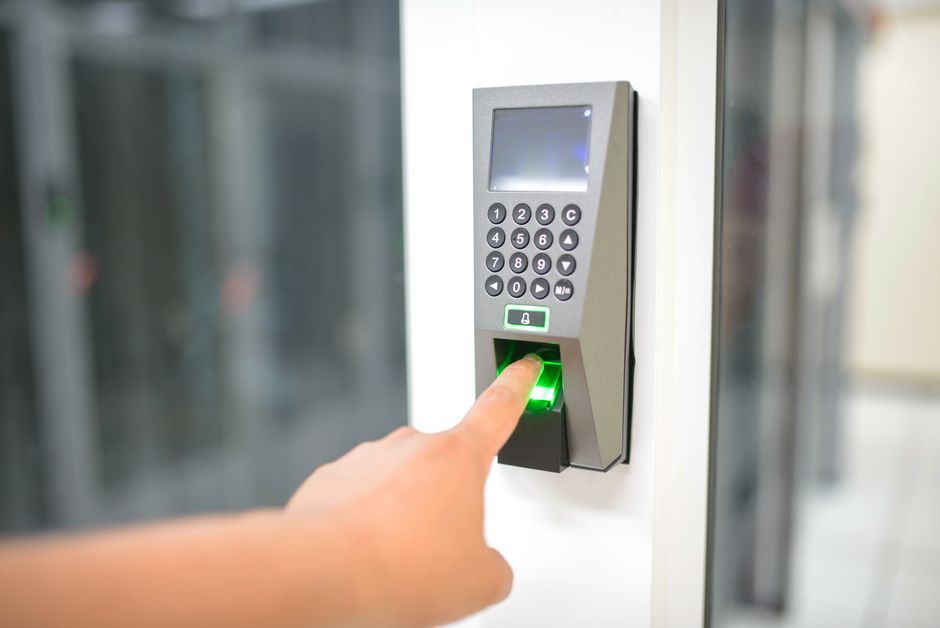
Passkeys for Small Business: What They Are & When to Use Them
Passkeys offer a new way to sign in, promising better security and convenience. This guide explains how passkeys work, their current uses for small…
-

M365 Shared Mailbox Permissions: Who Can Access What?
Managing shared email access in Microsoft 365 can be confusing. This guide clarifies membership, ‘Send As,’ ‘Send on Behalf,’ and delegate roles for your…
-

Two-Factor Authentication: A Must for Small Business Security
Securing your business accounts is critical. This guide explains why two-factor authentication (2FA) is a necessary step, outlines various methods, and…
-
Microsoft 365 Custom Branding: Strengthening Login Security
A familiar Microsoft 365 login page can be a powerful defense against phishing. Understand how adding your business’s branding helps employees recognize…
-

Microsoft 365 Admin Center: New Tenant Essential Setup
Setting up a new Microsoft 365 tenant involves many configuration choices. Understand which initial settings are crucial for small businesses and…
-

Cloud Phone Systems vs. Landlines: Small Office Verdict
Deciding between cloud phone systems and traditional landlines for your small business? Compare costs, features, reliability, and scalability to make an…
-
Cloud Backup Services for Small Business: 2026 Picks
Navigate 2026’s top cloud backup services for small businesses and non-profits. Find practical advice to protect your data, choose the right solution, and…
-
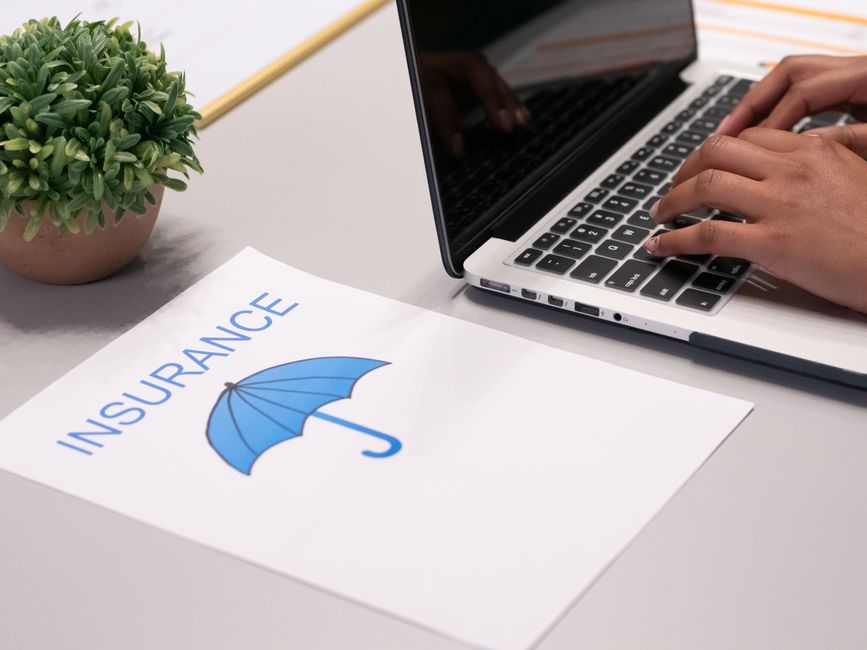
Cyber Insurance IT Requirements: Renew Smarter
Understand key IT requirements for cyber insurance renewal. Learn about MFA, backup, and EDR to secure your policy and protect your small business.
-

Simple BYOD Policy for Small Business & Non-Profits
Craft a simple BYOD (Bring Your Own Device) policy for your small business or non-profit. Get practical steps to protect data, define usage rules, and…
-
Top VPNs for Small Business Remote Work 2026
Navigate the crowded VPN market to find the best services for your small business remote work. Learn what features matter most for security and…
-

Best Secure Remote Access for Small Business
Navigate secure remote access options for your small business. Compare VPNs, remote desktop, and cloud solutions to find the right balance of security,…
-
Endpoint Security for Nonprofits: Top Picks & What to Know
Navigate endpoint security for your nonprofit. Discover top software options, essential features, and how to choose the right protection for your budget…