What This Guide Covers
Making decisions about your organization’s technology can feel overwhelming. This guide is designed to give you a clear, practical understanding of passkeys so you can make an informed choice. We are not just explaining a technology; we are outlining a business decision.
In this article, you will learn what passkeys are in plain language, showing how they differ from the passwords you use every day. You will understand the specific security and convenience benefits passkeys offer a small organization, especially in preventing common and costly cyberattacks. This guide also identifies which major business platforms already support passkeys and where you can start implementing them immediately. We will clarify the current limitations of passkeys and explain why you will still need a password manager for the foreseeable future. Finally, you will get a step-by-step plan for introducing passkeys to your team without disrupting your workflow.
What Exactly Are Passkeys and How Do They Work?
The constant cycle of creating, remembering, and resetting passwords is a source of frustration and a significant security risk for every organization. Passkeys are designed to solve this problem permanently. A passkey is not a password you have to remember; it is a secure digital key that lives on your device, like your smartphone, tablet, or computer.
When you sign up for a service that supports passkeys, your device creates a unique pair of cryptographic keys. Think of it as creating a custom lock and key for that one specific website. One key is the public key, which is sent to the website’s server. The other is the private key, which is stored securely on your device and never leaves it. This is the critical difference: the website never stores your secret.
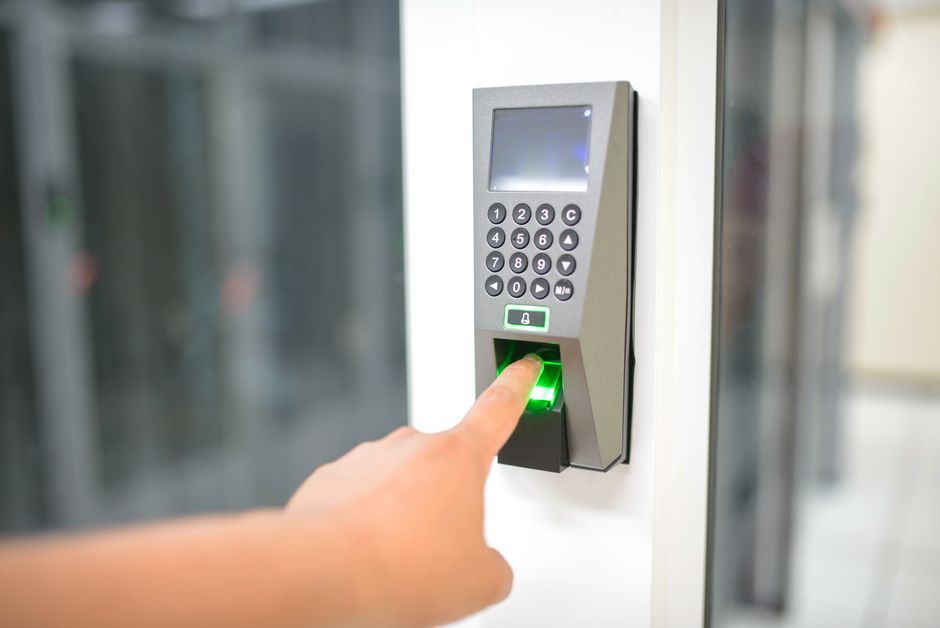
The login process is where the magic happens. When you want to log in, you simply use your device’s built-in security, such as your fingerprint (Touch ID), face scan (Face ID), or device PIN. This action “unlocks” the private key on your device. The website sends a unique challenge, your device uses the private key to sign that challenge, and sends the signature back. The website then uses your public key to verify the signature. If they match, you’re in.
The only analogy you need is that of a bank safe deposit box. The public key is like the address of your box, which is public information. The private key is the physical key to that box, which you hold and never let out of your sight. To prove you own the contents, the bank doesn’t ask you to hand over your key; they ask you to use your key to unlock the box in their presence. This is how a passkey works—it proves you have the secret key without ever revealing it.
This process makes passkeys fundamentally more secure than passwords. A data breach at a company you use is no longer a catastrophe for your login credentials, because the company never had your secret private key in the first place. All they have is the public key, which is useless on its own. It also makes you immune to common phishing attacks. A fake website can’t trick you into giving up your passkey because the passkey is cryptographically bound to the real website’s address.
Why Should My Small Business Consider Passkeys?
For a small business or non-profit, every minute and every dollar counts. Adopting new technology needs to provide a clear return, either by saving time, reducing risk, or making work easier. Passkeys deliver on all three fronts.
The primary benefit is a dramatic improvement in security. The number one way attackers breach small organizations is through stolen or weak passwords. Employees often reuse passwords across multiple services. When one of those services gets breached, attackers use those stolen credentials to try to access your company email, financial accounts, and client data. Passkeys stop this entirely. Since each passkey is unique to a single service, a breach at one company has no impact on your security at another.
Furthermore, passkeys are phishing-resistant. Phishing emails, which trick employees into entering their login details on a fake website, are a constant threat. An employee can be fooled, but a passkey cannot. The browser and operating system check that the website you’re on is the legitimate site the passkey was created for. If there’s a mismatch, the login simply fails. This single feature neutralizes one of the most effective attack vectors used against small businesses.
The second major benefit is convenience and reduced administrative overhead. Think about how much time is lost to forgotten passwords. An employee can’t access a critical application, so they have to stop work, go through a password reset process, and maybe even contact you or your IT support for help. With passkeys, logging in is as fast as looking at your phone or touching a sensor. This removes friction for your team and frees up your time from dealing with endless login problems.
Finally, adopting passkeys helps future-proof your organization. This technology is not a fleeting trend; it’s a new industry standard developed by the FIDO Alliance and backed by Apple, Google, and Microsoft. By starting the transition now, you place your business on a modern, more secure footing. You demonstrate to clients and partners that you take security seriously, which can be a competitive advantage.
Where Can My Small Business Use Passkeys Today?
The transition to a passwordless future is happening now, but it is not yet complete. The good news is that many of the core services that small businesses rely on already offer robust passkey support. You can start securing your most important accounts today.
The most critical places to implement passkeys are your primary identity providers. For most small organizations, this means Google Workspace or Microsoft 365. These accounts are the keys to your kingdom, controlling access to email, file storage, and collaboration tools. Enabling passkeys for these accounts should be your first priority. When an employee can log into their core Microsoft or Google account with a passkey, you’ve eliminated the biggest password-related risk to your business.
The next essential application is your password manager. Leading services like 1Password, Bitwarden, and Dashlane now allow you to use a passkey to unlock your password vault. This is a massive security upgrade. Instead of protecting all your other passwords with a single, long master password, you protect them with a phishing-resistant passkey. This makes your password manager vault significantly harder for an attacker to compromise.
Beyond these foundational services, support is growing rapidly. E-commerce platforms like Shopify and financial services like PayPal support passkeys. Collaboration and development tools like GitHub and DocuSign have also implemented them. While you won’t be able to use a passkey for every single login, you can cover a significant portion of your most sensitive and frequently used applications right now.
The strategy is to focus on impact. Start with the accounts that, if compromised, would cause the most damage to your business. This is almost always your email and your password manager. Once those are secured with passkeys, you can gradually expand to other supported services as time allows.
Do Passkeys Replace All Our Existing Passwords?
The simple answer is no, not yet. While passkeys are the future of authentication, we are in a multi-year transition period. For the foreseeable future, your business will operate in a hybrid world, using passkeys for modern services and traditional passwords for others.
This reality makes a password manager an absolutely essential tool for any small business. Do not think of it as a choice between passkeys or a password manager. The correct approach is to use a password manager to manage both your passkeys and your remaining passwords. The password manager becomes your bridge from the old way of doing things to the new.
Many of your critical line-of-business applications, especially industry-specific software, accounting systems, or legacy platforms, may not support passkeys for years. For these services, you will still need to generate, store, and use long, complex, and unique passwords. A password manager is the only practical way to do this securely across a team.
Your password manager will store your traditional passwords right alongside your new passkeys. When you visit a site, the password manager’s browser extension will know whether to prompt you for a passkey or fill in a password. This creates a seamless experience for your employees, reducing confusion and ensuring the right credential is used for the right service.
In my experience, thinking you can go “all in” on passkeys today is a mistake. It leads to frustration when you inevitably encounter services that don’t support them. I feel the same way about 2 part authentication, but that’s another discussion. The better strategy is to embrace the hybrid model. Use passkeys wherever they are supported to get the security and convenience benefits, and rely on your password manager to handle everything else securely.
| Concept | What It Means | Why It Matters for Your Business | What To Do Next |
|---|---|---|---|
| Passkey | A digital credential stored on a user’s device (phone, computer) that replaces a password. It’s unlocked with a fingerprint, face scan, or PIN. | Eliminates the risk of stolen passwords from website breaches and makes your business immune to common phishing attacks. | Identify your most critical service (e.g., Google Workspace, Microsoft 365) and enable passkey login for your own account as a first test. |
| Password Manager | A secure, encrypted vault for storing all your credentials—both new passkeys and old-style passwords. | It is the essential tool for managing the transition. You cannot go 100% passkey today, so you need a secure place for the remaining passwords. | If you don’t have one, sign up for a business plan from a reputable provider like 1Password or Bitwarden. This is your first, non-negotiable step. |
| Phishing Resistance | A passkey is tied to a specific website address. It will not work on a fake or fraudulent site, even if an employee is tricked into clicking a bad link. | This single feature neutralizes the most common and effective cyberattack method used against small businesses, protecting your data and finances. | Prioritize rolling out passkeys for accounts that handle sensitive information or financial transactions to gain this protection immediately. |
| Gradual Adoption | You will introduce passkeys for supported services over time, while continuing to use passwords for services that have not yet been updated. | This avoids disruption and allows your team to get comfortable with the new technology at a manageable pace. It is a marathon, not a sprint. | Create a simple plan: Month 1, secure your password manager. Month 2, secure your email provider. Month 3, secure your top 3 other apps. |
What Are the Practical Steps to Start Using Passkeys?
Adopting passkeys doesn’t require a massive, disruptive project. You can begin with small, manageable steps that provide immediate security benefits. Here is a practical, five-step approach for any small organization.
Step 1: Choose and Implement a Business Password Manager. If you are not already using a password manager for your team, this is the absolute first step. It is the foundation of your security. Choose a reputable service like 1Password, Bitwarden, or Dashlane that offers business plans with features for sharing and administration. Get it set up and have every team member install it on their computer and phone.
Step 2: Secure the Password Manager Itself. Once the password manager is in place, the first action for every user should be to create a passkey to log into their own vault. This replaces the traditional “master password.” This one change dramatically increases the security of all the other credentials stored inside the vault, protecting them with a phishing-resistant login.
Step 3: Identify and Prioritize Critical Services. Make a list of your most important online accounts. This will always include your primary email and cloud platform (Google Workspace or Microsoft 365). It should also include your financial and payroll systems, your website hosting, and any system that contains sensitive customer data. Check which of these services currently support passkeys.
Step 4: Conduct a Small Pilot. Before rolling it out to everyone, test the process with a small group—maybe just yourself and one other tech-savvy employee. Pick one high-priority service, like Google, and go through the steps to add a passkey to your accounts. Document any confusing steps or potential issues. This allows you to create a simple, clear set of instructions for the rest of the team.
Step 5: Roll Out to the Team with Clear Communication. Now, you’re ready to bring the rest of the team on board. Send out an email explaining what passkeys are, why you are adopting them (better security, easier logins), and what to expect. Provide the simple, step-by-step instructions you created during your pilot. Start with the highest-priority service and expand from there over a few weeks or months.
What Are the Current Limitations for Small Businesses?
While passkeys represent a major step forward, the technology is still evolving. It’s important to be aware of the current limitations so you can plan for them.
The most significant limitation is simply uneven adoption. Many websites and applications, particularly older or more specialized software, do not yet support passkeys. This is the primary reason a password manager remains an essential tool. You will need a way to manage the passwords for these services securely.
Another practical concern is device dependency. A passkey is tied to a specific device. If an employee loses their phone, they lose the passkey stored on it. This is a manageable problem, but it requires a plan. The solution is to ensure each employee has at least two devices registered for their critical accounts (e.g., a laptop and a phone). Most services also provide one-time recovery codes that you should instruct employees to save in their password manager vault as a backup.
While the cross-platform experience has improved dramatically, there can still be occasional friction when using passkeys between different ecosystems, like using an iPhone to log into a service on a Windows PC. The technology uses QR codes and Bluetooth to handle this, and it generally works well. In my experience, using a password manager that syncs passkeys across all devices provides the smoothest and most consistent experience, regardless of what hardware your team uses.
Finally, passkeys are designed for individual accounts and make sharing credentials more difficult. For most situations, this is a security feature, not a bug, as it pushes businesses toward better practices like creating unique logins for each employee. However, if your organization has a legitimate need for a shared login to a specific service, you will likely need to continue using a traditional password for that account, stored securely in a shared vault within your password manager.
Integrating Passkeys: A Practical Approach for Your Team
The technical part of enabling passkeys is straightforward. The more important part is managing the human element of the change. A smooth rollout depends on clear communication and a patient, methodical approach.
Start by explaining the “why.” Before you send out any instructions, tell your team why you are making this change. Frame it as a direct benefit to them. An email with a subject like “A new, easier way to log in” is more effective than “Mandatory Security Update.” Explain that this will mean fewer forgotten passwords and better protection for their accounts and the company’s data.
Don’t try to do everything at once. Choose one service to start with—your email provider is the best candidate. Focus all your communication and training on getting everyone to create a passkey for that single service. Once that is successful, you can move on to the next one. A phased rollout prevents people from feeling overwhelmed.
Create a simple, one-page guide with screenshots. Do not just send a link to a generic support article from Google or Microsoft. Walk through the exact steps for your organization. For example: “1. Open Chrome and go to your Google Account settings. 2. Click on ‘Security’. 3. Find the ‘Passkeys’ section and click ‘Create a passkey’.” This tailored guidance makes a huge difference.
Identify an internal champion. Find one or two employees who are generally more comfortable with technology and have them go through the process first. They can provide feedback on your instructions and act as peer helpers for colleagues who might be struggling. This takes some of the support burden off of you.
The real issue here is momentum. The goal is not to be 100% passwordless in a month. The goal is to establish a new, more secure habit. By focusing on the most critical applications first, you get the biggest security benefits quickly and build the foundation for a more secure future.
The Bottom Line
Passkeys are a significant improvement over passwords, and they are ready for small business use today. However, the transition will take time. You cannot eliminate all your passwords overnight.
For most small businesses, the right starting point is to implement a business-grade password manager like 1Password or Bitwarden. Once it’s in place across your team, your first priority is to have every team member create a passkey to unlock their own password manager vault. This single step dramatically improves the security of all your other credentials by protecting them with a phishing-resistant login. From there, you can progressively roll out passkeys for your core services like Microsoft 365 or Google Workspace.
Frequently Asked Questions
What is a passkey and how does it differ from a password?
A passkey is a cryptographic key stored securely on your device, not a secret you have to remember. It uses your device’s biometrics or PIN to log you in, making it fundamentally more secure and resistant to phishing, unlike a password which can be easily stolen and reused.
How do passkeys improve security for small businesses?
They eliminate the biggest security risks: weak, reused, and stolen passwords. Because a passkey is tied to a specific website, it stops phishing attacks cold, which are a primary and costly threat to small organizations. This protects your company data and finances.
Can passkeys be used on all devices and operating systems?
Yes, passkeys are a standard supported by Apple, Google, and Microsoft, so they work across iPhones, Android phones, Windows, and Macs. A good password manager will help sync your passkeys seamlessly across all of your different devices, creating a consistent experience.
Which services or applications currently support passkeys for business use?
Major platforms like Google Workspace, Microsoft 365, and Apple iCloud have full passkey support. Many other business services like Shopify, DocuSign, and GitHub are also on board, and the list of supported applications is growing every month.
What should a small business do if a service doesn’t support passkeys yet?
For any service that does not yet support passkeys, you must continue to use a traditional password. It is critical that you use your password manager to generate and store a long, unique, and random password for each of these services to remain secure.
The shift away from passwords is one of the most significant security upgrades of the last decade. By starting the transition now with a clear plan and the right tools, your small business can gain a major security advantage and make daily work simpler and safer for your entire team.